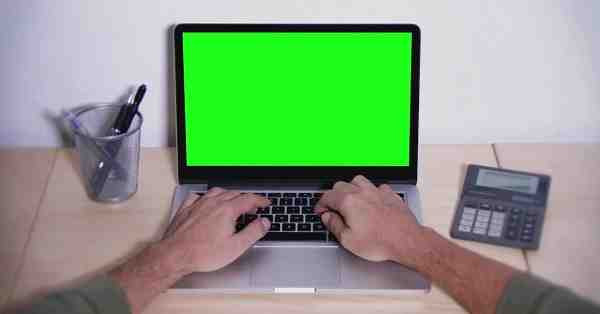
A green screen issue on a laptop can be frustrating, especially when it interferes with work, gaming, video streaming, or online meetings. The problem may appear as a completely green display, green lines on the screen, a green tint over images, or a green screen while playing videos. Fortunately, the issue is often caused by software settings, graphics drivers, or display connection problems and can sometimes be fixed without professional repair.
In this guide, we’ll explain the common causes of a green screen on a laptop and provide step-by-step solutions to help you fix the problem.
What Causes a Green Screen on a Laptop?
Before attempting a fix, it is important to identify the possible cause of the issue.
Common reasons include:
- Outdated or corrupted graphics drivers
- Display cable problems
- Incorrect color settings
- Graphics card issues
- Hardware damage to the screen
- Software conflicts
- Video playback errors
- Overheating of graphics components
Determining the root cause can help you apply the correct solution more quickly.
Check Whether the Problem Is Hardware or Software
The first step is to identify whether the issue is related to the laptop screen or the graphics system.
Connect an External Monitor
Connect your laptop to an external monitor or TV.
If the external display works normally:
- The laptop screen or display cable may be faulty.
If the external monitor also shows a green screen:
- The problem is likely related to software, drivers, or the graphics card.
This simple test can save a lot of troubleshooting time.
Restart Your Laptop
Sometimes temporary software glitches can cause display problems.
To restart:
- Save your work.
- Close all applications.
- Restart the laptop normally.
After rebooting, check whether the green screen issue has disappeared.
While simple, this solution often resolves temporary graphics-related errors.
Update Graphics Drivers
Corrupted or outdated graphics drivers are one of the most common causes of display issues.
On Windows
- Press Windows + X.
- Select Device Manager.
- Expand Display Adapters.
- Right-click your graphics card.
- Select Update Driver.
- Follow the on-screen instructions.
After updating, restart your laptop.
Updated drivers often fix screen discoloration and display rendering problems.
Reinstall Graphics Drivers
If updating doesn’t help, reinstalling the driver may resolve the issue.
Steps:
- Open Device Manager.
- Locate your graphics adapter.
- Right-click and choose Uninstall Device.
- Restart the laptop.
Windows will automatically reinstall the graphics driver during startup.
This process can remove corrupted driver files that may be causing the green screen.
Check Video Playback Settings
Some users only experience a green screen while watching videos.
This may occur due to hardware acceleration issues.
Disable Hardware Acceleration
In most browsers:
- Open Settings.
- Search for Hardware Acceleration.
- Turn it off.
- Restart the browser.
Test video playback again to see if the problem is resolved.
Adjust Display Color Settings
Incorrect display settings can sometimes create a green tint.
Reset Color Calibration
On Windows:
- Search for Color Management.
- Open the application.
- Select your display.
- Restore default color settings.
You can also update your display profile if available.
Check for Loose Display Connections
If your laptop has been dropped or opened for repairs, the display cable may be loose.
Common symptoms include:
- Green lines
- Flickering screen
- Color distortion
- Partial green display
Since internal display cables are delicate, this inspection is best performed by an experienced technician unless you are comfortable working with laptop hardware.
Scan for Malware
Although uncommon, malicious software can sometimes interfere with display functions.
Run a full system scan using:
- Windows Security
- Antivirus software
- Anti-malware tools
Removing harmful software may resolve unusual display behavior.
Monitor Laptop Temperature
Overheating can affect graphics performance and display output.
Signs of overheating include:
- Loud fan noise
- Sudden shutdowns
- Screen glitches
- Reduced performance
To reduce overheating:
- Clean air vents.
- Use the laptop on a hard surface.
- Remove dust buildup.
- Consider a cooling pad.
Maintaining proper airflow can improve overall system stability.
Check for Operating System Updates
System updates often include bug fixes and display improvements.
Update Windows
- Open Settings.
- Select Windows Update.
- Click Check for Updates.
- Install available updates.
- Restart the system.
Keeping your operating system current helps prevent compatibility issues.
When the Screen Hardware Is Damaged
If none of the software fixes work, hardware failure may be the cause.
Potential hardware problems include:
- Damaged LCD panel
- Faulty display cable
- Failing graphics chip
- Motherboard issues
Common hardware-related symptoms include:
- Permanent green lines
- Green patches that never disappear
- Green screen during startup
- Distorted BIOS display
In these cases, professional repair is usually necessary.
When to Seek Professional Help
You should contact a repair technician if:
- The green screen appears before Windows loads.
- The issue remains after reinstalling drivers.
- Physical screen damage is visible.
- External monitors show the same problem.
- The laptop overheats frequently.
Professional diagnosis can identify whether the issue involves the display, graphics card, or motherboard.
Tips to Prevent Green Screen Issues
Follow these best practices to reduce the risk of future display problems:
- Keep graphics drivers updated.
- Install operating system updates regularly.
- Avoid overheating.
- Use quality power adapters.
- Handle the laptop carefully.
- Avoid physical impacts and drops.
Proper maintenance can extend the lifespan of your laptop and its display components.
Conclusion
A green screen on a laptop can result from software glitches, outdated graphics drivers, incorrect display settings, overheating, or hardware failure. Fortunately, many cases can be fixed by updating drivers, disabling hardware acceleration, adjusting display settings, or performing system updates. If the issue persists on both the laptop screen and external monitors, professional diagnosis may be required. By following the troubleshooting steps outlined in this guide, you can identify the cause of the problem and restore your laptop’s display to normal operation.
FAQs
Q: Why is my laptop screen green?
A: A green screen may be caused by graphics driver issues, display cable problems, hardware damage, or incorrect display settings.
Q: Can a graphics driver cause a green screen?
A: Yes. Corrupted or outdated graphics drivers are one of the most common causes of display discoloration and green screen problems.
Q: How do I know if my laptop screen is damaged?
A: Connect an external monitor. If only the laptop display shows the issue, the screen or display cable may be damaged.
Q: Why does the green screen appear only when watching videos?
A: This is often related to hardware acceleration or browser graphics settings.
Q: Can a green screen be fixed without replacing the display?
A: Yes. Many green screen issues are software-related and can be resolved through driver updates, display adjustments, or system maintenance.